I'm currently in the process of converting some of my Windows Phone apps to the Windows 8 Consumer Preview. While doing so I discovered there is no MessageBox.Show() method in WinRT. The alternative is to use the new MessageDialog class. This means I have to rewrite a lot of code which I try to avoid. Therefore I came up with my own MessageBox helper class which mimics the behavior of the WP7 MessageBox. In this post I will demonstrate this, using the following sample application.
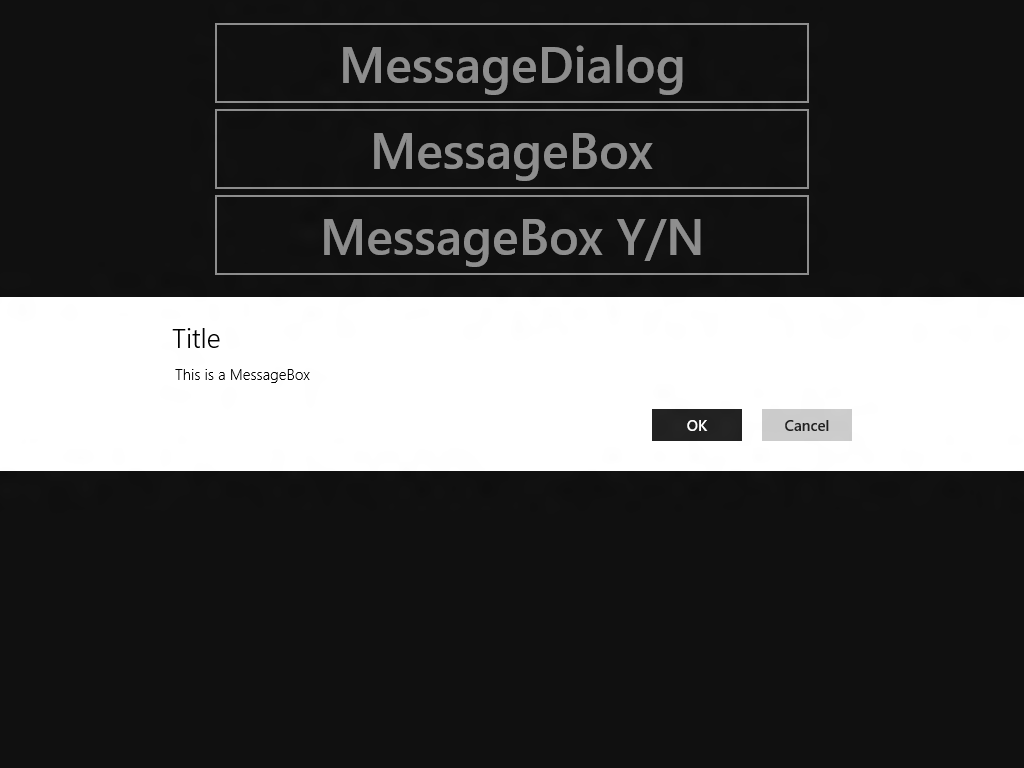
Suppose I have the following code in my Windows Phone application:
I have developed a few Windows Phone apps which support a Trial mode. In these WP7 apps I use the static IsTrial property of my LicenseManager class to check if the user is using a paid or trial version. This class uses the IsTrial() method of the Microsoft.Phone.Marketplace.LicenseInformation class if you are running in configuration 'Release' mode. If you are developing and running in configuration 'Debug' mode it will return true if the TRIAL conditional compilation symbol is set in your project properties. This makes it easy to test the Trial mode in your code.
I have written a Silverlight Minesweepe game in October 2008. I just published an improved version on Silver Arcade which support right mouse click. I implemented it using the following RightMouseTrigger. You can set the SetHandled property to true. This stops the MouseRightButtonDown event from bubbling to it's parent.
I really love Behaviors, Actions and Triggers. I hope you like it too.
public
class
RightMouseTrigger : EventTriggerBase<Control> {
protectedoverridestring GetEventName() {
return"MouseRightButtonDown";
}
#region SetHandled Dependency Property
///<summary>
/// Get or Sets the SetHandled dependency property.
///</summary>
publicbool SetHandled {
get { return (bool)GetValue(SetHandledProperty); }
set { SetValue(SetHandledProperty, value); }
}
///<summary>
/// Identifies the SetHandled dependency property.
/// This enables animation, styling, binding, etc...
///</summary>
publicstaticreadonlyDependencyProperty SetHandledProperty =
DependencyProperty.Register("SetHandled",
typeof(bool),
typeof(RightMouseTrigger),
newPropertyMetadata(true));
#endregion SetHandled Dependency Property
protectedoverridevoid OnEvent(EventArgs eventArgs) {
var ea = eventArgs asMouseButtonEventArgs;
if (ea != null && SetHandled) {
ea.Handled = true;
}
base.OnEvent(eventArgs);
}
}
Zoals beloofd kan je de Presentatie + Demo's van mijn 'Introduction to WCF RIA Services' sessie van de DevDays downloaden. Je dient eerst wel de Northwind database te installeren op localhost\SQLEXPRESS. Het benodigde installatiescript is ook in de ZIP file opgenomen.
Op 30 en 31 maart a.s. vinden de Microsoft Development Days (DevDays) plaats. DevDays is een evenement dat al 13 jaar dé bron van kennis en inspiratie voor IT ontwikkelaars is. Ook deze keer vinden de DevDays plaats in het World Forum in Den Haag.
Dit jaar zijn de DevDays voor mij extra speciaal omdat ik door Microsoft ben gevraagd om als spreker op de DevDays te verschijnen. Op dinsdag 30 maart mag ik een sessies verzorgen over een onderdeel van Silverlight 4, namelijk WCF RIA Services. Met een goed doordacht Framework, op basis van codegeneratie, wordt hiermee het bouwen van gedistribueerde Silverlight applicaties veel eenvoudiger.
Wilt u ook naar mijn sessie komen luisteren, maar heeft u zich nog niet ingeschreven, ga dan naar www.devdays.nl, want ook u bent uiteraard van harte welkom.
Silverlight doesn't support keyboard selection on a ListBox or Combox. I have created a small Behavior which fixes this problem. You can attach the KeyboardSelectionBehavior to a ListBox or ComboBox using Microsoft Expression Blend. You drag it from the Assets and drop it on your ComboBox or ListBox. If you have a custom ItemTemplate you will have to set the SelectionMemberPath property.
Try my behavior below. If you press a key on the ComboBox or ListBoxes it will select the next item starting with the given key.
The ComboBox in this example is not databound, The behavior uses the Convert.ToString() method to convert the Content of each ListBoxItem/ComboBoxItem to a string. An invariant case insensitive StartWith() comparison is used to find the next item.
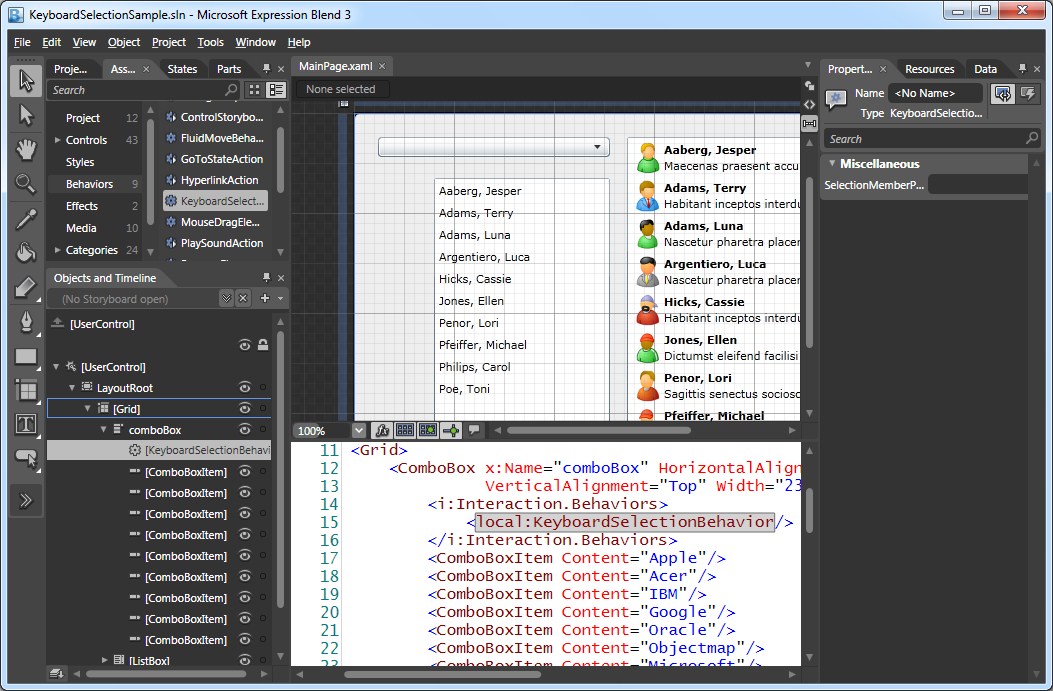
The left ListBox is databound to SampleData containing Employees. The behavior uses the DisplayMemberPath of the ListBox. The Name of the databound Employee is used for keyboard selection.
A few months ago I wrote an blog post about a Silverlight 3.0 LetItSnowBehavior. This Behavior can be used to add a Snow effect to a Canvas. Very usefull if you want to create a christmas card.
This behavior was always showing you falling snow flakes. You couldn't stop and (re)start the gameloop. The best way to implement this is by adding Commands to the behavior. This allows you to select one or more triggers to Start or Stop the gameloop. I have added the Start and Stop properties of the type ICommand to the LetItSnowBehavior class. In the constructor I have initialized these properties with new ActionCommand objects (Microsoft.Expression.Interactions.dll) and delegates to the OnStop() and OnStart() methods. Triggers attached to these commands will execute the these methods.
I have written an Simple Report Library for Windows Forms applications a few years ago. The new Printing API makes it possible to create a similar solution for Silverlight 4.
You create a report by instantiating a new ReportDocument object. You can set the Title and the SubTitle. Next you add Paragraphs (FrameworkElements) to the report. Finally you Print the report.
ReportDocument r = newReportDocument() {
Title = "Test Title",
SubTitle = "Test SubTitle",
};
for (int i = 0; i < 40; i++) {
var tb = newTextBlock() {
Text = "Test text " + i,
FontSize = i + 10,
};
r.Paragraphs.Add(tb);
}
r.Print();
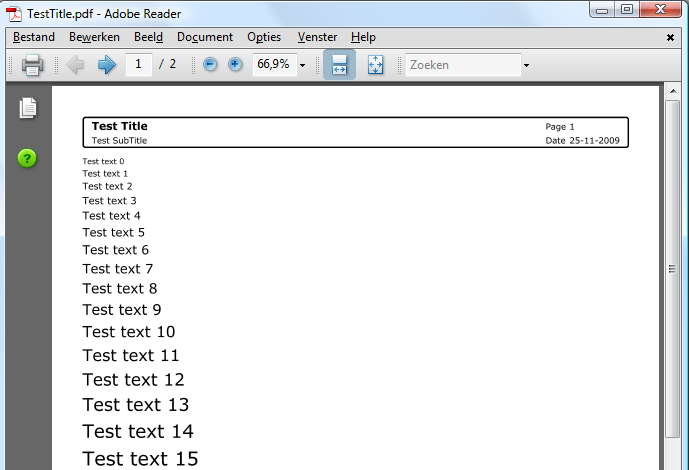
This prints the following Test Title.pdf if you print it to a PDF writer.

SilverlightXP is a web application where Silverlight Developers and Designers can post links to controls, resources and other interesting information about Microsoft Silverlight.
Controlling a MediaElement in Silverlight isn't difficult. You use the Play(), Stop() and Pause() methods in your code. I have written the 'ControlMediaElementAction' Behavior which makes it even easier. You don't have to write a single line of code. The ControlMediaElementAction is associated with a MediaElement. It has a ControlMediaElementOption which you can set to Play, Stop, Pause and RewindAndPlay. The Invoke() methods controls (Plays, Stops, Pauses and RewindAndPlays) the AssociatedObject (MediaElement).
public
class
ControlMediaElementAction : TriggerAction<MediaElement> {
protectedoverridevoid Invoke(object o) {
switch (ControlMediaElementOption) {
caseControlMediaElementOption.Play:
this.AssociatedObject.Play();
break;
caseControlMediaElementOption.Stop:
this.AssociatedObject.Stop();
break;
caseControlMediaElementOption.Pause:
this.AssociatedObject.Pause();
break;
caseControlMediaElementOption.RewindAndPlay:
this.AssociatedObject.Position = TimeSpan.Zero;
this.AssociatedObject.Play();
break;
default:
break;
}
}
publicControlMediaElementOption ControlMediaElementOption { get; set; }
}
public
enum
ControlMediaElementOption {
Play, Stop, Pause, RewindAndPlay
}
You assign a ControlMediaElementAction to a MediaElement. In Expression Blend you drag it from you Asset tab and drop it on a MediaElement. Then you can select your trigger and set all other properties from the Properties tab.
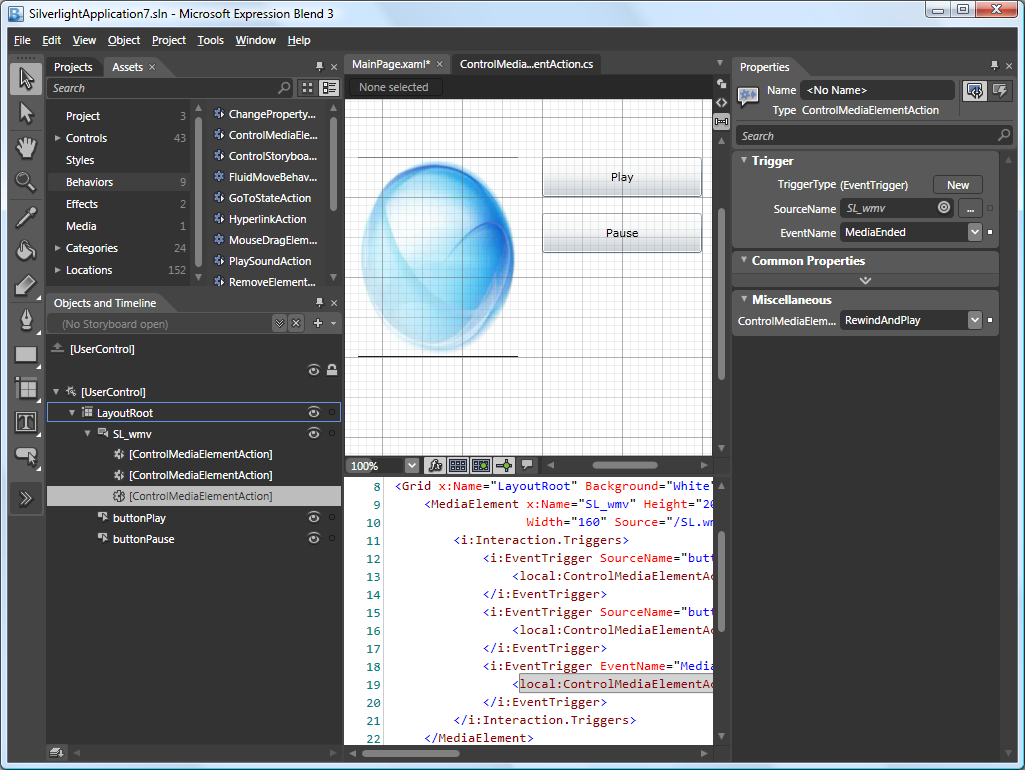
In the following example I have 3 ControlMediaElementAction assigned to a MediaElement. The first is triggerd by the 'Click' event of 'buttonPlay' and uses the 'Play' option. The second is triggerd by the 'Click' event of 'buttonPause' and uses the 'Pause' option. The third is triggerd by the 'MediaEnded' event of the MediaElement and uses the 'RewindAndPlay' option, making the movie loop.